Exposing 0UC_SALES_STATS_04 into SAP Datasphere
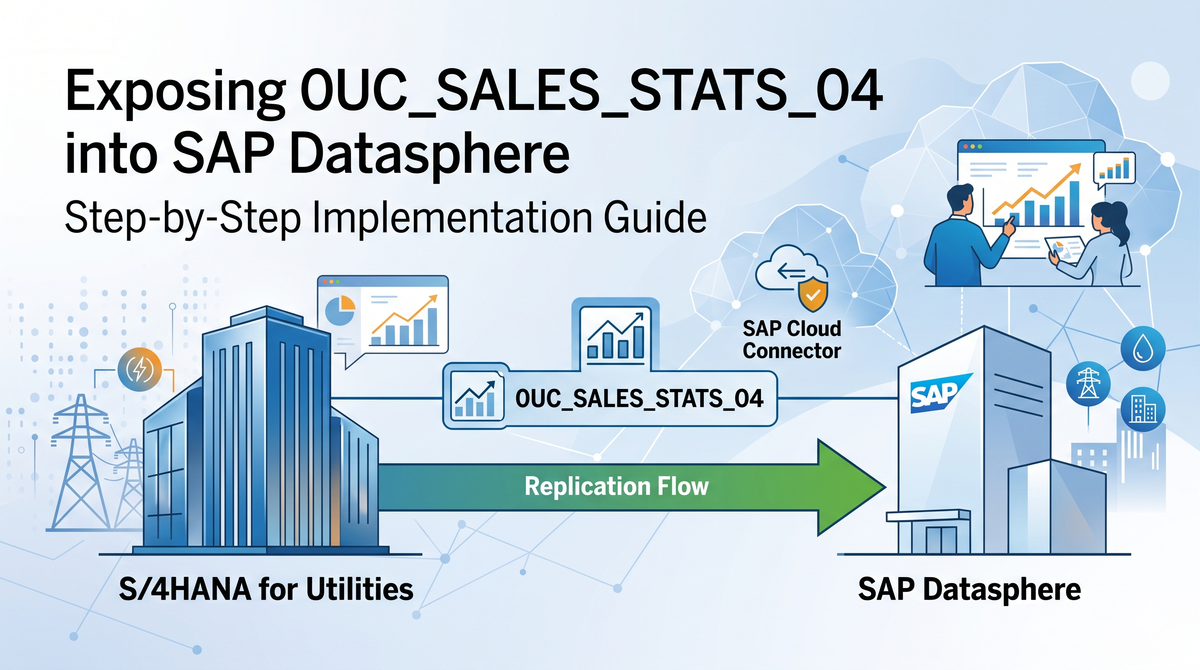
Step-by-Step Implementation Guide
From S/4HANA for Utilities to SAP Datasphere via Replication Flow
Context and Background
- The customer uses Sales Statistics as a core solution in their BW system, based on extractor 0UC_SALES_STATS_02
- In S/4HANA for Utilities, a new extractor 0UC_SALES_STATS_04 enables native integration with SAP Datasphere
- The older 0UC_SALES_STATS_03 has a critical limitation: initial load only in Replication Flows (SAP Note 3587890)
- 0UC_SALES_STATS_04 supports both Initial + Delta replication, making it the correct choice for Datasphere
- This guide documents the end-to-end activation and consumption process
Reference: SAP Roadmap item INNO_56121 - Native sales statistics and unbilled revenue reporting in SAP Datasphere (Delivered Q1/2026)
Extractor Comparison: Which One to Use
| Extractor | Description | Delta in Replication Flow | Use For |
|---|---|---|---|
| 0UC_SALES_STATS_02 | Classic BW extractor | Not designed for Datasphere | BW / BW/4HANA only |
| 0UC_SALES_STATS_03 | Delta by Mass Activity | Initial only (Note 3587890) | Not recommended |
| 0UC_SALES_STATS_04 | Mass Activity for Datasphere | Initial + Delta | SAP Datasphere / BDC |
Prerequisites
- S/4HANA for Utilities system with IS-UT add-on installed (verify in transaction SAINT)
- Sufficient S/4HANA release level that includes the 0UC_SALES_STATS_04 DataSource
- SAP Cloud Connector installed and accessible (for on-premise connectivity)
- SAP Datasphere tenant with administrative access
- SAP BTP subaccount linked to Cloud Connector
- User with full authorization (SAP_ALL) for DataSource activation
Step 1: Verify IS-U Installation
Objective: Confirm the Utilities component is present on the S/4HANA system.
1.1 Check SAINT (Add-On Installation Tool)
- Go to transaction SAINT
- Look for IS-UT (S/4HANA IS-UT) in the Installed Components list
- Note the release and level (e.g., Release 808, Level 0003)
1.2 Verify the Extractor Function Module Exists
- Go to transaction SE37
- Enter function module:
ISU_BW_SALES_STATISTICS - Confirm it exists and is Active
If ISU_BW_SALES_STATISTICS exists, the extraction code is deployed. The DataSource just needs to be activated.
Step 2: Locate the DataSource in RSA5
Objective: Find 0UC_SALES_STATS_04 in the Business Content DataSource tree.
Why RSA6 Does Not Show It
- RSA6 ("Postprocess DataSources and Hierarchy") only shows already activated DataSources
- The "Find" button in RSA6 only searches within activated sources
- If IS-U DataSources were never activated, they will not appear in RSA6
Navigate RSA5
- Go to transaction RSA5 ("Installation of DataSource from Business Content")
- Do NOT look under the "IS" top-level node — the IS-U DataSources are not there
- Scroll down to find
0IS_UC(Utility Company) — this is the correct node - Expand
0IS_UC>0IS_UC-IO(Utility Company Master Data) - Scroll down to find:
0UC_SALES_STATS_02— IS-U Sales Statistics (Delta created by Mass Activity)0UC_SALES_STATS_03— IS-U Sales Statistics (Delta Created by Mass Activity)0UC_SALES_STATS_04— IS-U Sales Statistics (Mass Activity) for Datasphere
Key Finding: The IS-U DataSources are listed under 0IS_UC (Utility Company), NOT under "IS" in the hierarchy tree.
Step 3: Activate the DataSource
Objective: Register 0UC_SALES_STATS_04 in the system so it can be consumed.
User and Client
DataSource activation is cross-client — it registers the DataSource at system level regardless of which client you log into.
Activation Steps
- Log on to client 000 with admin user
- Go to transaction RSA5
- Navigate to
0IS_UC> expand the tree - Select 0UC_SALES_STATS_04
- Click "Activate DataSources" in the toolbar
- When prompted for "Create Object Directory Entry":
- Click "Local Object" (assigns to package $TMP — no transport needed for POC)
- Check the Display Log:
- Yellow warnings about DEC field lengths (ANZVERTR, CNTBILLDOC, CNTINVDOC) are harmless
- Success = yellow warnings only, no red errors
Troubleshooting Authorization Errors
| Error | Cause | Solution |
|---|---|---|
| "You do not have authorization to display DataSource 0UC_SALES_STATS_04, component 0IS_UC" | Missing S_RO_OSOA authorization | Use a user with SAP_ALL (SAP* or BPINST) |
| "User DDIC may not make changes in customer systems" | Hard-coded DDIC restriction | Switch to SAP* or BPINST |
Step 4: Verify Activation
Objective: Confirm the DataSource is properly registered and functional.
| Transaction | Action | Expected Result |
|---|---|---|
| RSA6 | Expand 0IS_UC node, find 0UC_SALES_STATS_04 | DataSource listed and visible |
| RSA3 | Enter DataSource name, execute with all fields blank | 0 records (no error) = success |
| ODQMON | Provider: "BW DataSource", search for queue | Empty until first subscription (normal) |
RSA3 Test Details
- Go to transaction RSA3
- Enter DataSource:
0UC_SALES_STATS_04 - An "Alternative Selection" popup appears asking for "Print document"
- Leave all fields blank and click Execute
- Result: 0 records with no error = DataSource is technically functional
- The system may have no IS-U billing data (expected on sandbox/CAL systems)
ODQMON Context Mapping
| ODQMON Provider Dropdown | ODP Context Code | Contains |
|---|---|---|
| ABAP Core Data Services | ABAP_CDS | CDS views with extraction annotation |
| BW DataSource | SAPI | Classic BW extractors (0UC_SALES_STATS_04) |
| HANA Information Views | HANA | HANA calculation views |
| SAP NetWeaver Business Warehouse | BW | BW InfoProviders |
ODQMON will only show 0UC_SALES_STATS_04 after a consumer (Datasphere) creates the first subscription. Empty queue before that is normal.
Step 5: Configure SAP Cloud Connector
Objective: Enable secure RFC connectivity from SAP Datasphere (cloud) to the on-premise S/4HANA system.
Access Cloud Connector
- URL:
https://localhost:8443 - Credentials: Administrator / manage
Configuration Steps
- Connect to BTP Subaccount:
- Open Cloud Connector admin UI
- Add your SAP BTP subaccount (region, subaccount ID, user/password)
- Verify connection status: Green/Connected
- Add RFC System Mapping:
- Go to "Cloud to On-Premise" > Add system mapping
- Back-end Type: ABAP System
- Protocol: RFC
- Internal Host:
localhost(or the actual hostname of your S4H instance) - Internal Port: Instance Number 00
- Virtual Host: Define a virtual hostname (e.g.,
s4h-virtual) - Virtual Port:
00
- Add Resources:
- Add resource with path prefix:
/ - Access Policy: Path and all sub-paths
- Add resource with path prefix:
System Details (CAL Fully-Activated Appliance)
| Parameter | Value |
|---|---|
| System ID | S4H |
| Instance Number | 00 |
| Client | 100 (or 000) |
| RFC User | Admin-User |
| RFC Password | xxxxxxxx |
Step 6: Create Datasphere Connection
Objective: Set up the SAP ABAP connection in SAP Datasphere.
Connection Configuration
- In SAP Datasphere, go to Connections > Create
- Select connection type: SAP ABAP
- Configure:
| Field | Value |
|---|---|
| Connection Name | e.g., ABAP_NSC_S4H |
| Connection Type | SAP ABAP |
| Cloud Connector | Select your connected Location ID |
| Virtual Host | The virtual host defined in Cloud Connector |
| Virtual Port | 00 (or the numeric port you mapped) |
| Client | 100 |
| User | User |
| Password | Password |
| Language | EN |
- Click Test Connection
Expected Validation Result
Connection "ABAP_NSC_S4H" is valid, but not all features are available.
- Data flows are enabled.
- Replication flows are enabled.          <-- THIS IS WHAT YOU NEED
- Remote tables can't be used because of errors in the connection.